
Create and send a form
Collect enquiries or ask existing families to complete information.
Checked against Meadow on 2026-10-12
Owners and managers manage forms. Open Forms and decide who should fill it in before creating it.
Choose the form’s purpose
| Purpose | What happens |
|---|---|
| New families | A public shareable link collects a response and creates a new enquiry. |
| Existing families | The form is sent to selected children’s families, with signed-in completion and an individual link fallback. |
A public enquiry form is not the right way to ask an existing parent to update their child’s record.
For a new enquiry, follow Build and publish, then Share with new families. For a family already in Meadow, follow Build and publish, then Send to existing families. If they have no account, use the individual link in that section.
Build and publish
- Select New form, give it a clear name and choose its purpose.
- Add questions and organise them into sections.
- Use Child profile fields for information that should update the child’s profile. Custom questions stay with the form response.
- Check required questions and use Preview to review the form.
- Save and Publish when it is ready.
Saving changes to a published form puts those changes live. Save before previewing newer edits: the preview uses the saved version.
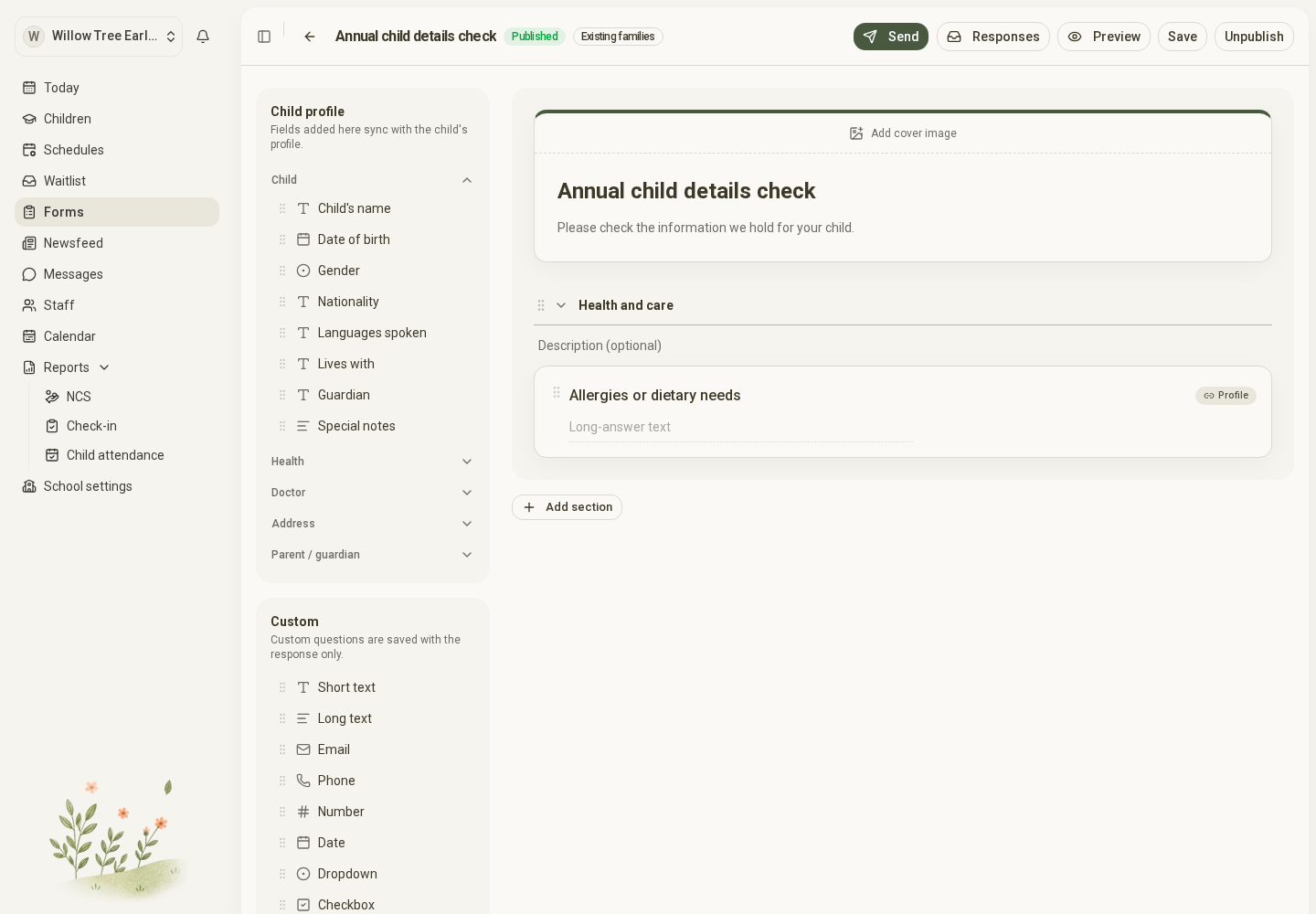
Open the full-size screenshot. Use your browser’s Back button to return to this guide.
Share with new families
Open the published form’s Share link action and copy the link. Anyone with that link can submit it. Responses appear as new enquiries in Waitlist.
Send to existing families
Choose Send, select the whole setting, rooms or individual children, and add a short note explaining what you need and when.
Read the audience summary before sending. It shows children who will be asked, those who already replied, repeat notifications and children with no parent account. An assignment alone cannot notify a parent who has no linked account. You can invite them or use the individual link below.
A family without a parent account
Open the form’s sent/response view and find the child marked No parent account. Use Copy link to share that child’s individual form link with their intended parent or guardian. They can complete it without signing in. Check the expiry shown and use a new link if it has expired.
Treat this as a private link to that child’s form: do not publish it on your website or forward it to other families.
Check it worked
For a public enquiry form, check Waitlist after a family submits it. For an existing family, check the child’s assignment in the form’s sent/response view. A pending assignment is not a completed response.
Review replies
Open Responses to see submissions and View answers. A child’s forms also appear on their record, with pending and submitted items.
If the form has changed since someone replied, review the version note alongside their saved answers. See Complete a form as a parent.