
Review and export attendance
Choose the right report, check the dates and download the records you need.
Checked against Meadow on 2026-10-26
Owners and managers open reports from Reports in the menu.
| Report | Use it for |
|---|---|
| Check-in | Review recorded arrival and departure activity. |
| Child attendance | Review children’s planned and recorded attendance by week, including funding comparisons. |
| NCS | Manage CHICK registrations, dates and registered hours. |
Review the week
- Open Reports → Child attendance.
- Choose the week and use the room, child or funding filters you need.
- Expand the relevant room or child to review the day.
- Check explanations for absences, missing care or an unexplained difference.
- Open the day’s details if you need to inspect or correct a session.
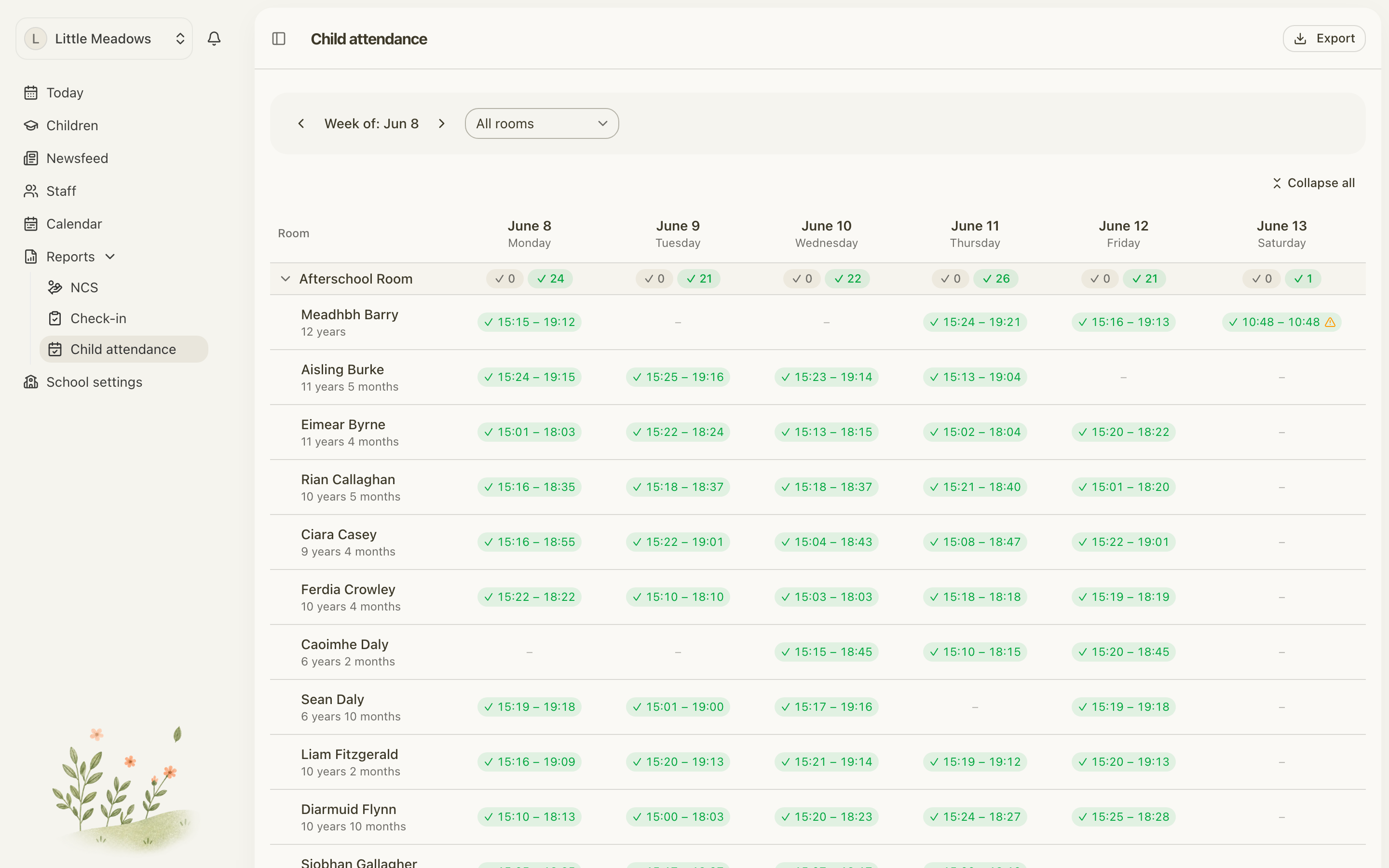
Open the full-size screenshot. Use your browser’s Back button to return to this guide.
Export records
Select Export → Excel workbook to review the report and work with the data in Excel. The workbook has two tabs:
- Weekly report keeps the familiar room groups, weekdays and funding summaries, with wrapping, column widths, frozen headings and landscape printing already set.
- Daily data has one row per child per day, with separate date, time, hours and status columns. Filter by child, room, date, unexplained absence or Needs review. The totals row updates to match the filtered records. Hours are numbers:
6.25means 6 hours 15 minutes. Unknown attendance stays blank; past days with no attendance show zero. The hidden Child reference column can distinguish children with identical names when building pivot tables.
Both tabs use the report’s selected week and filters. They are a saved snapshot; editing the data tab does not recalculate the weekly report or update Meadow.
The CSV options remain available for sharing data with other systems.
Attendance CSV follows the weekly report: children grouped by room, a column for each visible day, and the Week and Funding totals. It uses the selected filters, search and sort order, and includes every matching child even when a room is collapsed. Booked and actual times, absences and warnings appear together in each day’s cell. Turn on Wrap Text in your spreadsheet to read the stacked lines. CSV preserves the report’s rows and columns, but not its colours or styling.
Funding CSV keeps the detailed child-by-day layout for reconciling funding records.
Before sharing an export, check the dates, filters and children included. Keep downloaded child records in the secure location your setting uses for personal information.
A saved export is a snapshot. If you correct attendance or registration information afterwards, export again so your copy reflects the changes.
See Correct attendance and Understand NCS attendance comparisons.