
Accept your invitation and sign in
Join the correct setting and find your children.
Checked against Meadow on 2026-10-12
Start with the invitation from your childcare setting. You do not need to create a new setting for your family.
Join Meadow
- Open the invitation email from the setting.
- Follow its link and create a login, or sign in if you already have one.
- Use the same email address that received the invitation.
- Complete any email or security verification shown.
- Open the setting and check Children for your linked children.
On a small screen, open the menu to find Children, Newsfeed, Messages and Calendar. If you belong to more than one setting, check the setting name at the top of the menu.
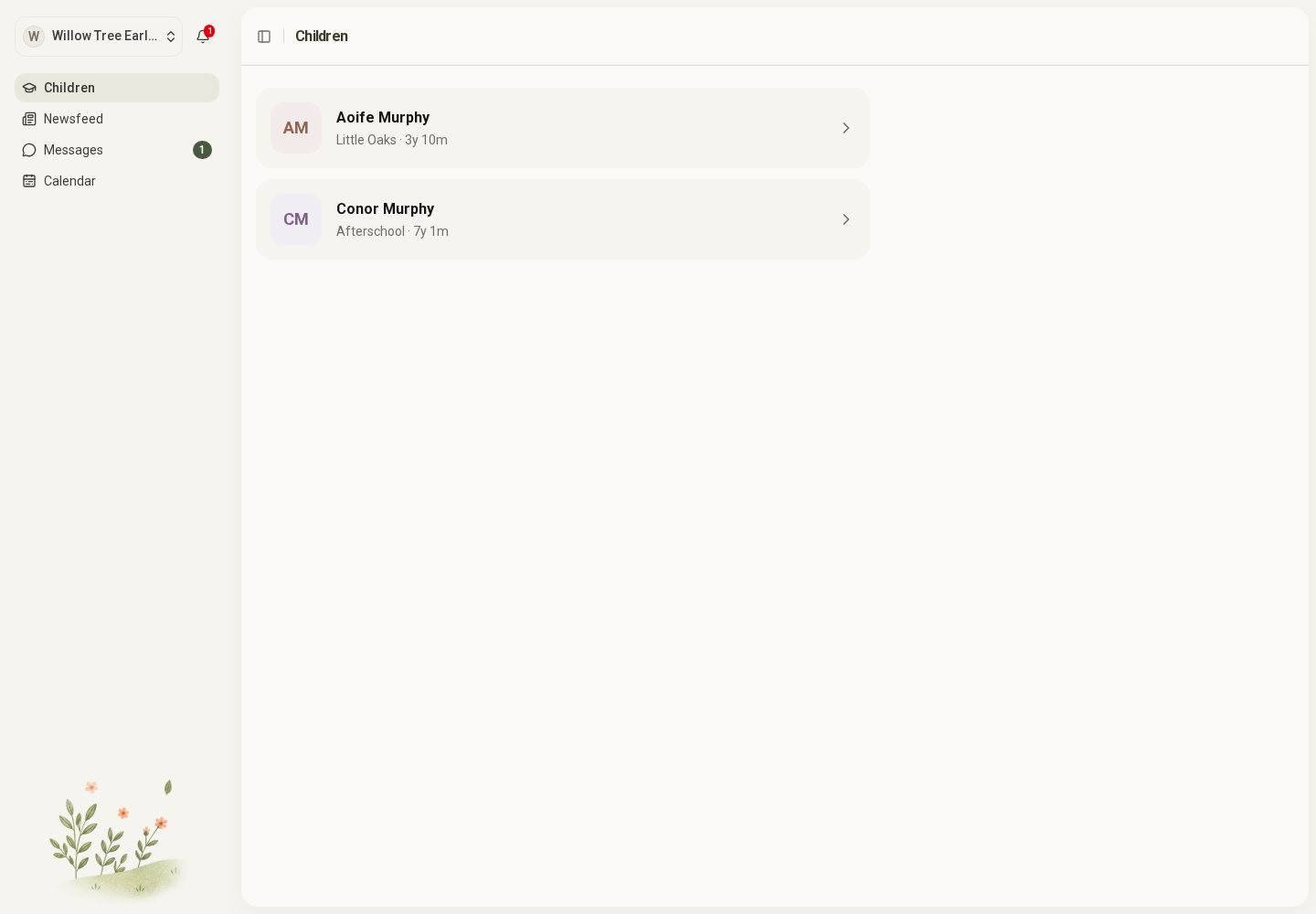
Open the full-size screenshot. Use your browser’s Back button to return to this guide.
If your child is missing
Check that you signed in with the invited email address and selected the correct setting. Then ask the office to check your contact link to the child and your invitation status.
Do not create a new child record or a new setting to fix access. The office needs to connect your login to the existing child record.
If the invitation or password does not work
Check your spam or junk folder. Ask the setting to check the email address and resend an invitation where needed. For a forgotten password, use the password-reset option on the sign-in page and follow the email instructions.
Never send your password or verification code to the setting or to support.