
View your child’s day and report an absence
Find daily records and keep the setting informed when your child will be away.
Checked against Meadow on 2026-10-12
Open Children and select your child. Activity shows saved attendance, activities and absences. About contains profile information, and Family shows the contacts you are allowed to view or manage.
Parents can update their linked child’s personal and health details. Open About, find Basic info or Health, select Edit, then save and check the updated details. Ask the office to correct registration details or other fields you cannot edit. Family access is more limited; if you do not see Edit, contact the office. You will not see staff management pages or the staff-only Schedules tab.
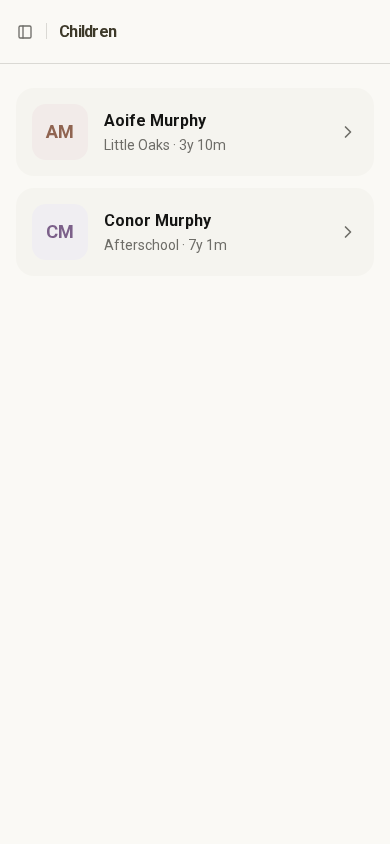
Open the full-size screenshot. Use your browser’s Back button to return to this guide.
Report an absence
If the setting allows parents to report absences:
- Open your child and choose Mark absent.
- Select the first and last day. For a single day, choose the same date twice.
- Choose the reason and add a short note if useful.
- Save and check the absence appears for the correct dates.
Use this for sickness or a personal holiday. Contact the office when you want to change your child’s usual hours or arrange extra care.
If the button is missing, your setting may ask staff to record absences. Send the details through the usual channel, such as a message to the office.
Check-in and check-out
Some settings let parents record their own child’s arrival and departure. If yours does, use the attendance actions and check the room and time before saving.
If an attendance record is wrong or an absence conflicts with attendance already recorded, ask the office to review it. Do not add a second record to try to cancel the first.