
Reuse a schedule template
Save common hours and apply them to children without rebuilding the week.
Checked against Meadow on 2026-10-12
A schedule template holds hours, terms and the outside-term arrangement. It has no child or start date until you apply it. Owners and managers manage templates.
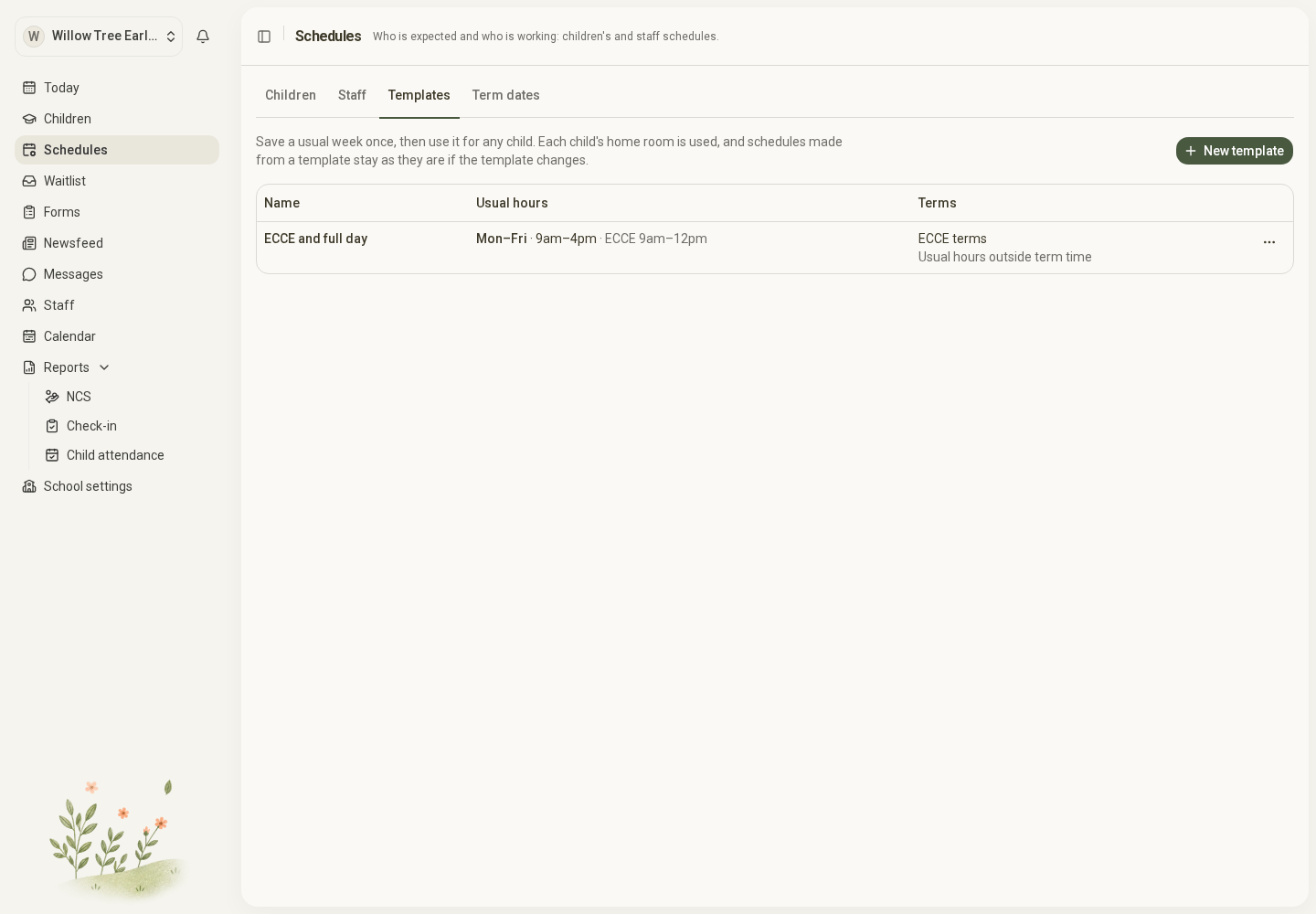
Open the full-size screenshot. Use your browser’s Back button to return to this guide.
Create a template
- Open Schedules → Templates and select New template.
- Give it a clear name, such as “ECCE and full day”.
- Enter the usual weekdays and hours. Mark any ECCE time slots.
- Choose the terms and the arrangement outside term time.
- Select Save template.
Use a name that tells colleagues when to choose it. Two templates called “Morning” are harder to distinguish than “ECCE 9–12” and “Morning care 8–1”.
Apply it to children
Open Schedules → Children → Manage schedules and choose the template option. Set the start date and optional end date, review the hours and terms, then select the children.
Each child gets their own schedule using their home room. You can adjust the details before saving. Review the result: if some children were not saved, resolve those specific issues before repeating the action.
If a selected child already has a schedule on the start date, the new arrangement changes over from that date. Read any warning about ending the earlier schedule, especially when the new arrangement has an end date. The old hours do not automatically resume afterwards.
Change or delete a template
Use the template’s actions to edit, duplicate or delete it. Existing schedules created from it stay as they are. To change children’s saved hours, edit their schedules separately.
For staff, enter their usual hours in the staff schedule editor.