
Plan staff hours and time off
Set the usual working week and record exceptions without losing it.
Checked against Meadow on 2026-10-12
Owners and managers plan staff time in Schedules → Staff. A working schedule is separate from a staff member’s check-in and check-out.
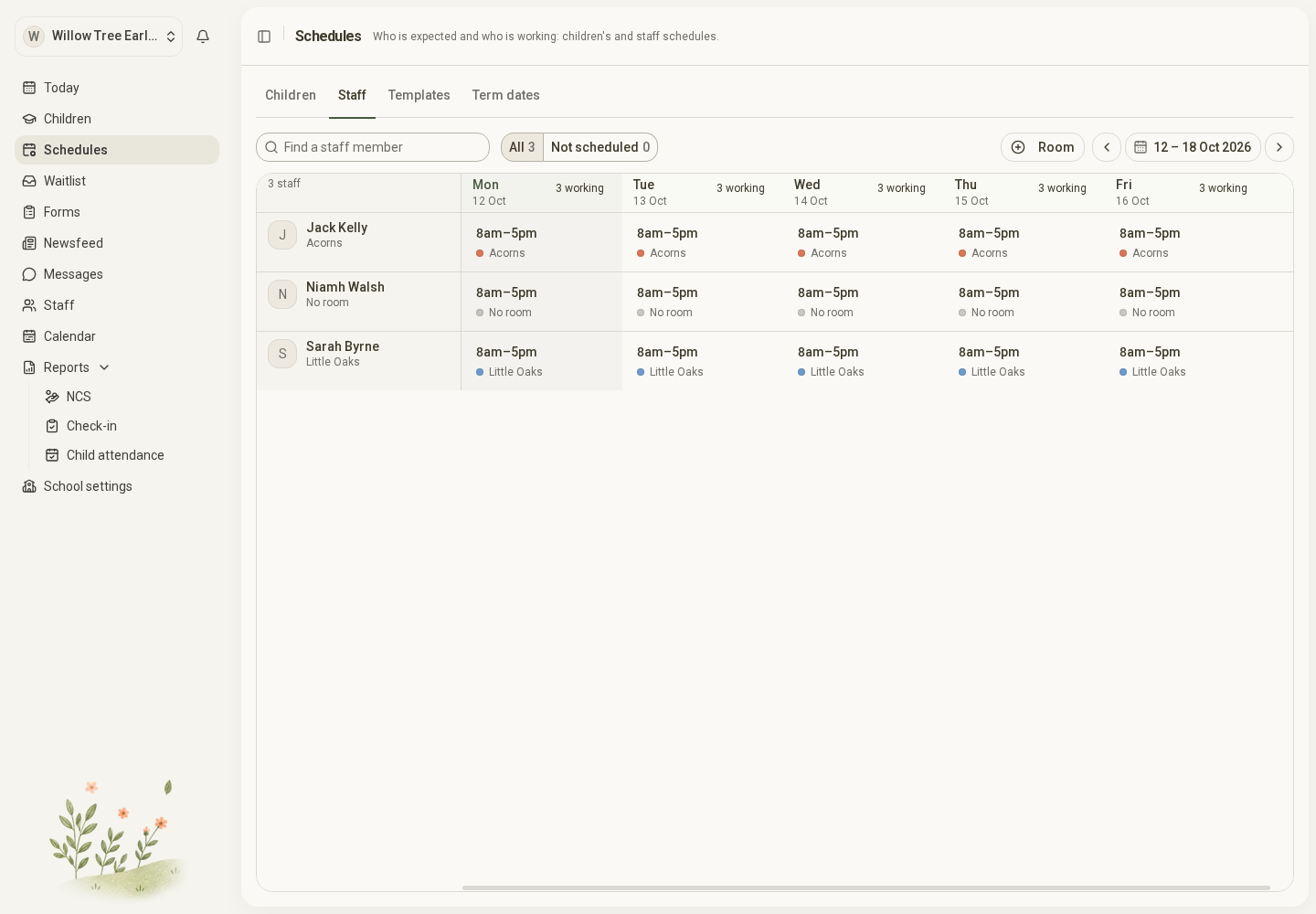
Open the full-size screenshot. Use your browser’s Back button to return to this guide.
Add or change usual hours
- Find the staff member and select a day in the grid.
- Choose the add or edit schedule action.
- Set the start date, optional end date, weekdays and time slots.
- Choose a room for each time slot where needed. A manager, cook or office worker can have hours with no room.
- Save and check the hours in the staff grid.
Staff schedules currently set usual weekly hours. Use one-off days and time off to record exceptions, including changes during school holidays.
For an ongoing change, use Change from a date. Use the correction option only when you intend to change the existing schedule, including its earlier dates.
Change a single day
Use This day only… for swapped days, changed hours or a different room on one date. Removing the one-off day reveals the usual arrangement again.
Add time off
- Select the staff member’s day and choose Add time off….
- Choose Whole days or From a time to a time.
- Enter the date or date range, choose the reason and add a note if useful.
- Select Add time off.
Time off sits over the usual schedule. It does not rewrite the week. Remove it with Remove time off… if entered in error.
If Meadow reports attendance within the requested time off, review the actual check-ins first. Do not remove accurate attendance to force a leave record through.
For actual arrivals and departures, see Staff attendance.