
Create or change a child’s schedule
Set the usual week, rooms and terms, then choose how future changes apply.
Checked against Meadow on 2026-10-12
Owners and managers create schedules. Before you start, check the child’s home room and add any term dates the arrangement should follow.
Choose the change you need
- A usual weekly arrangement: add or change a schedule below.
- Different hours on one date: use This day only.
- A child will be away: record an absence, keeping the usual schedule.
Add a schedule
- Open Schedules → Children and find the child.
- Select a day without a schedule and choose Add a schedule…. To add several children together, use Manage schedules → Add schedules….
- Set Use these hours from and, if needed, Ends · optional.
- Choose the weekdays, start and end times, and rooms. Use Add another time for a second time slot, or Different hours on other days when weekdays differ.
- Mark the time slots that are ECCE session hours. Split a longer day into ECCE and ordinary care; at most three hours in a day can be marked ECCE.
- Continue and choose the terms the schedule follows, or Full year – no terms.
- Choose what happens outside term time: Usual hours, Not attending, or Different hours / rooms.
- Save and check the week grid.
Time slots on the same day cannot overlap. For example, 9am–12pm ECCE followed by 12pm–4pm ordinary care is two adjacent slots.
Change an existing schedule
Select a scheduled day and choose Edit schedule…. Decide how the change should apply before saving:
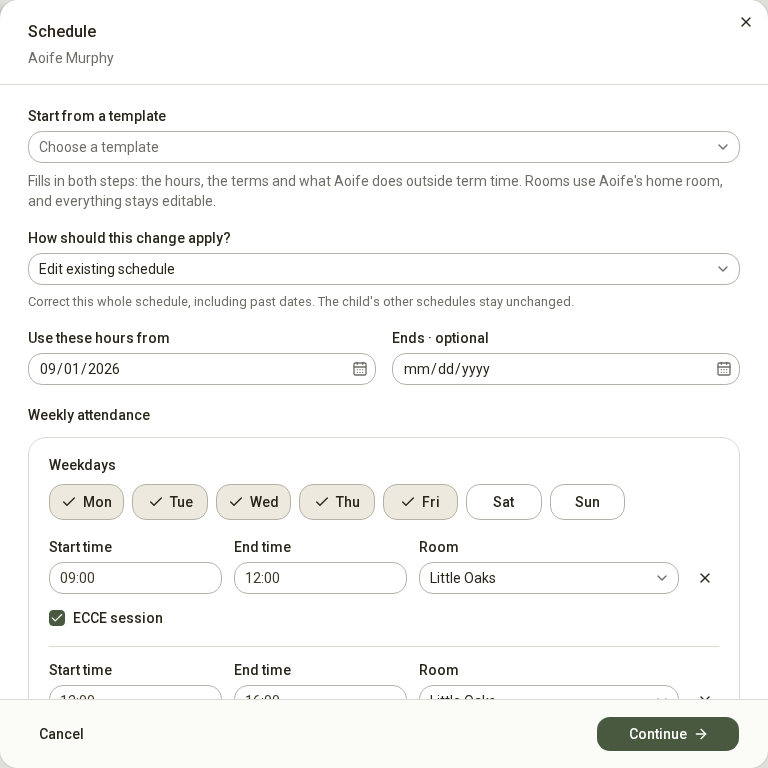
Open the full-size screenshot. Use your browser’s Back button to return to this guide.
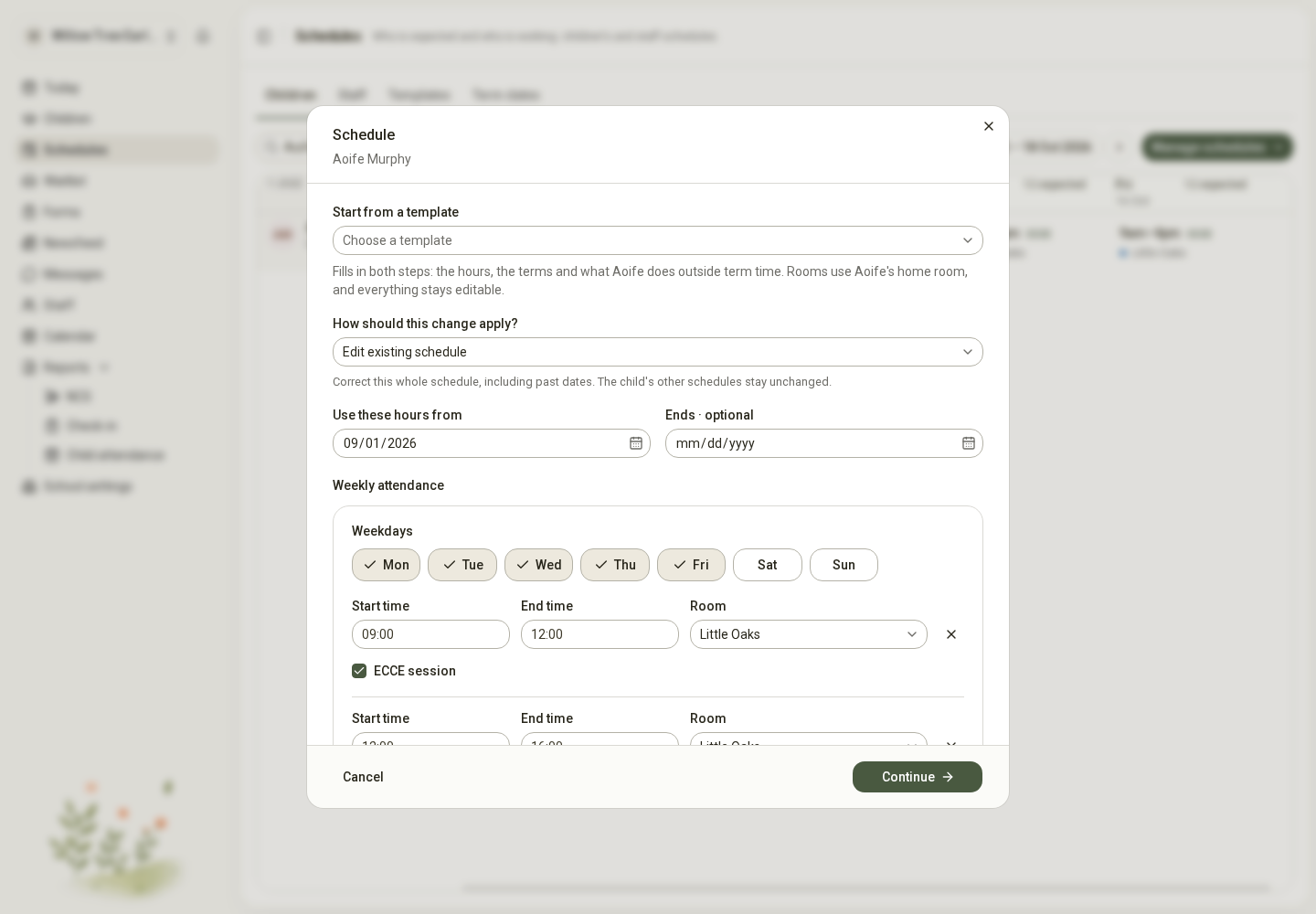
- Edit existing schedule corrects that whole schedule, including past dates it covers.
- Change from a date keeps the earlier arrangement and starts the new hours on your chosen date. Later schedules remain in place.
For example, if Aoife starts staying until 5pm from 2 November, choose Change from a date and enter 2 November. Do not correct the whole September schedule unless September’s records were wrong too.
A child can have successive schedules, but their dates cannot overlap. If the current schedule has no end date, use Change from a date to start a new arrangement.
Check the result
Review an ordinary week and a holiday week. Check rooms, ECCE labels and any end date. Saving a schedule does not check the child in or change their NCS registered hours.
For just one date, use This day only. For many children with the same hours, use a template.