
Set up rooms and capacity
Give each room a clear name, capacity and staff-to-child ratio.
Checked against Meadow on 2026-10-12
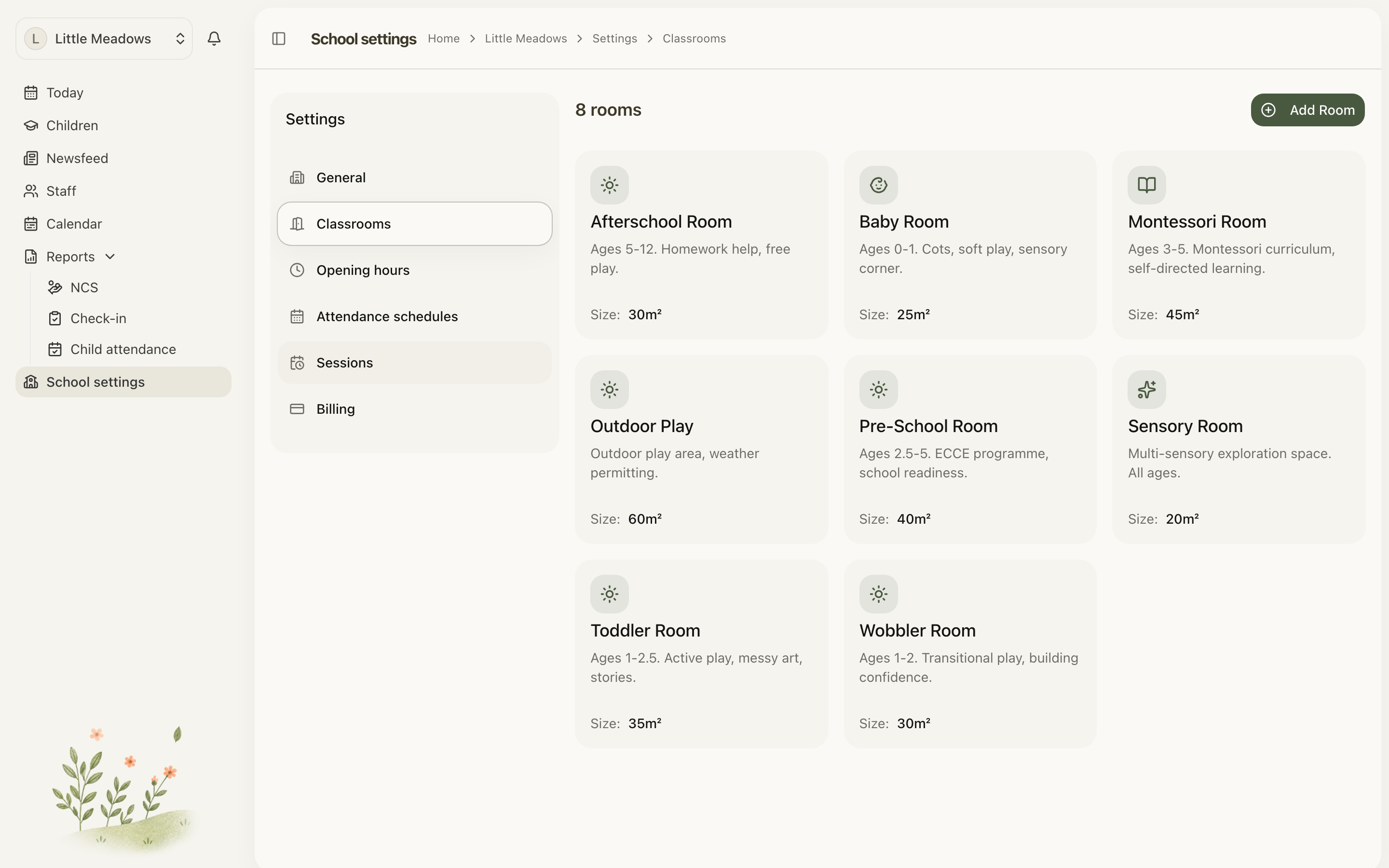
Owners and managers manage rooms under School settings → Classrooms.
Add or change a room
- Open Classrooms and select Add Room, or open an existing room’s edit action.
- Enter a recognisable room name.
- Add the age range, capacity, staff ratio, size and description where applicable.
- Choose the room’s colour and other available display options.
- Save and check the room appears correctly in Today and the room list.
Open the full-size screenshot. Use your browser’s Back button to return to this guide.
Enter the correct capacity and ratio
Capacity is how many children the room takes. Staff ratio is the number of children per staff member, such as 1:8. Meadow uses the values your setting enters; it does not calculate an approved capacity from floor area or certify the room’s compliance.
Use the figures that apply to your service and age group. Review them when room use changes. A staff member’s allocation or schedule does not prove they are present; actual staffing comes from recorded attendance.
Moving a child or staff member
A child’s home room, their scheduled room and their current checked-in room serve different purposes. Check the child’s profile and schedule when changing an ongoing arrangement. Use Move room only to record their current location.
A staff member’s allocated room also affects which room messages and posts reach them. See Invite and manage staff.
Archive a room
Use the room’s archive action when it is no longer in use. Review children, staff and future schedules using it before archiving. Keep existing records for history rather than renaming an old room to represent an unrelated new one.