
Invite and manage staff
Give colleagues the right access and keep records when someone leaves.
Checked against Meadow on 2026-10-12
Owners and managers manage the team in Staff. The owner controls staff role changes.
Invite a colleague
- Open Staff and select Invite Staff.
- Enter the colleague’s email address and choose the appropriate role.
- Send the invitation.
- Check Pending Invites until they have joined. They should accept using the invited email address.
- Open their staff profile to add their job title and allocated room where needed.
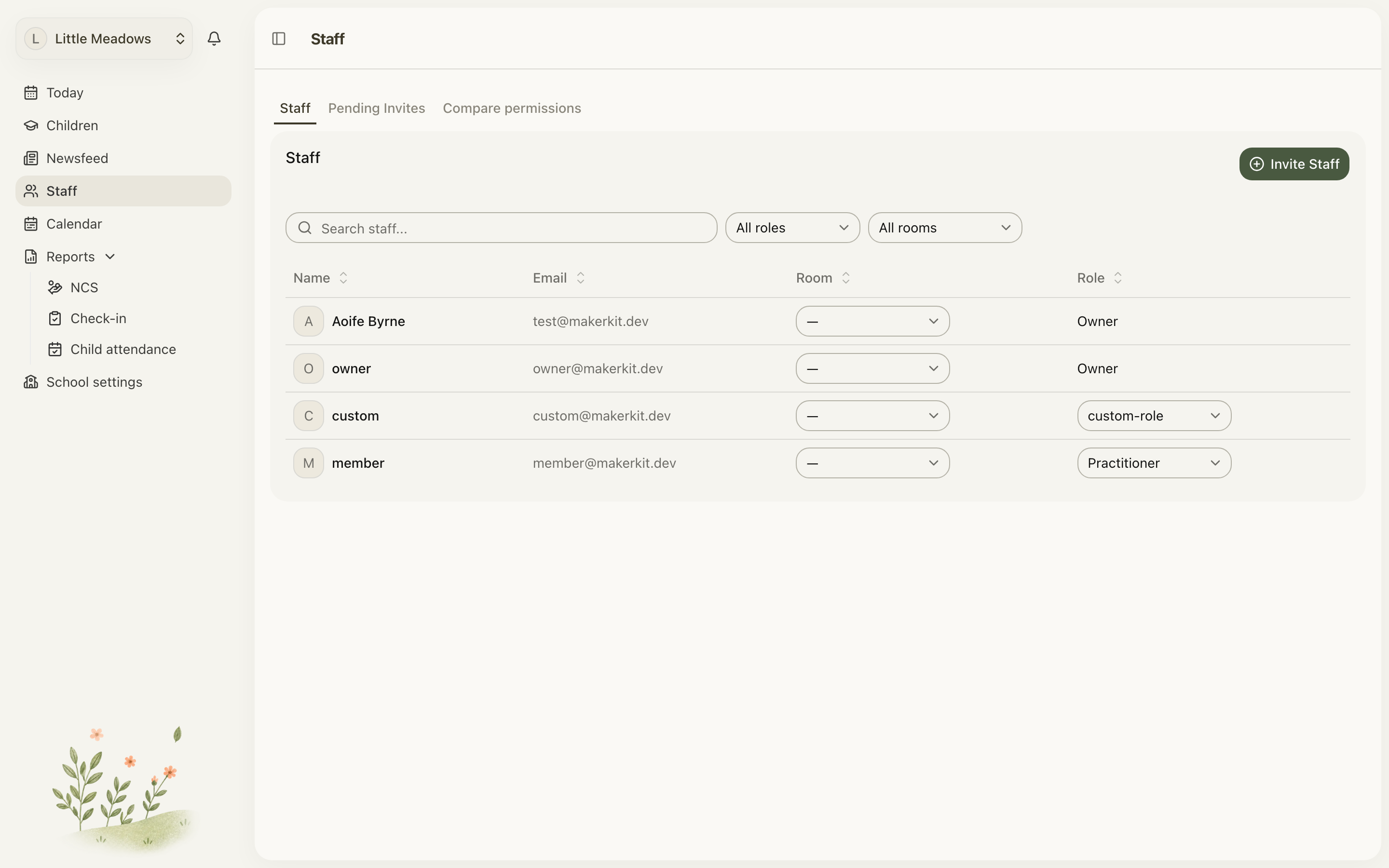
Open the full-size screenshot. Use your browser’s Back button to return to this guide.
Use Compare permissions to see what each role allows before choosing it. Giving someone a management role opens administrative tools and information beyond their daily room work.
Room allocation and access
A staff member’s allocated room helps decide which room messages and posts reach them. They can also star a room they need to follow. Allocating or starring a room does not record attendance.
Use staff schedules for planned hours and staff attendance for actual arrivals and departures.
When someone leaves
Use Offboard from the staff member’s actions. Review the confirmation carefully: their staff access ends immediately, and the leaving date is recorded as today.
Their staff record and the work they recorded remain. If they are also a parent or family contact at the setting, they keep that family access. Offboarding is therefore not a way to remove their contact link to a child.
The primary owner cannot be offboarded through this action. Resolve ownership first. If asked to verify with a second factor, complete that verification before continuing.
Use Former staff to find retained employment records after offboarding.