
Create your school
Sign up, create the workspace that holds your rooms, children, staff and settings, and switch between schools.
Your school is your service's private workspace in Meadow. Everything — rooms, children, staff, attendance, plans and settings — lives inside it, and your whole team works there together. This is the first thing to set up, and it only takes a minute.
For the bigger picture and the order to set everything else up in, see the getting started overview.
Sign up for a Meadow account
First you need a Meadow account to sign in with. This is your personal login — your school comes next.
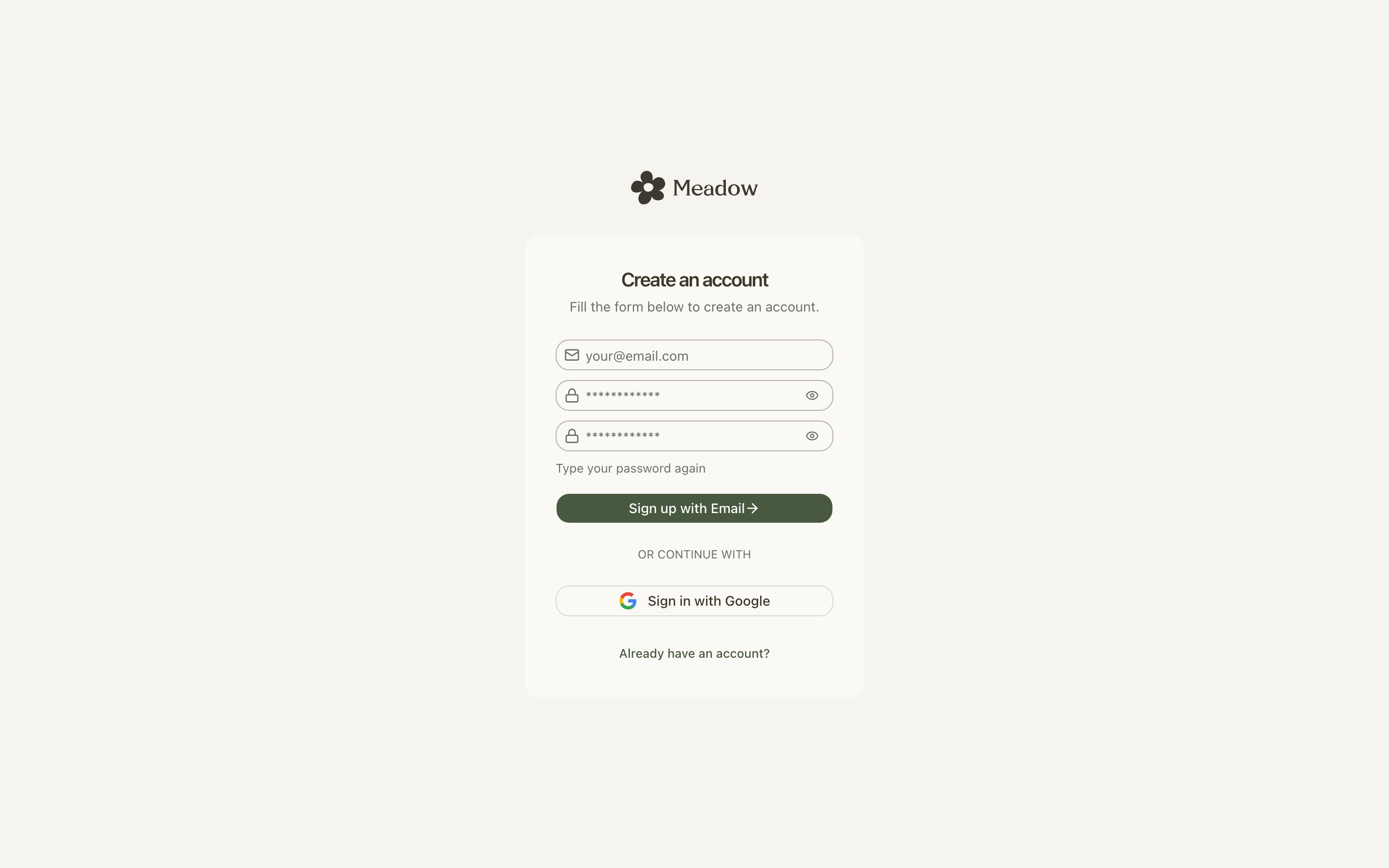
- Go to the sign-up page. You'll see Create an account.
- Enter your Email, a Password, and the same password again in Repeat password.
- If a terms checkbox is shown, tick it to accept the terms.
- Click Sign up with Email. The button shows Signing up... while it works.
- You'll see We sent you a confirmation email. Open your inbox and click the link to verify your account.
- Come back and sign in.
Note: Your password needs to be at least 8 characters. Some setups also ask for a number, an uppercase letter or a special character — the form will tell you if so.
Create your school
Signing in gives you an account, but not yet a school. There are two ways to create one, depending on whether this is a brand-new account.
If you're brand new
If you've just signed up and don't have a school yet, Meadow takes you straight to a full-page form headed Create your first school.
- Enter a School Name.
- Click Get Started.
You'll land inside your new school as its owner.
From the account menu
If you already have a school (or you want to add another), use the account menu at the top of the sidebar.
- Click the account menu at the top of the sidebar.
- Click Create a School (the + row at the bottom).
- In the Create School dialog, type a School Name.
- Click Create School. The button shows Creating School... while it works.
You'll be taken into the new school, and you become its owner with full access.
Choosing a school name
The School Name is what you and your team will see throughout Meadow. A few rules:
- It must be 2 to 50 characters.
- It can't contain special characters such as
! @ # $ % ^ & * ( ) + = [ ] { } ; ' : " \ | , . < > / ?. - It can't be a reserved word like settings or billing.
Meadow generates a web address for your school automatically from the name, so there's nothing else to fill in.
Tip: A short, recognisable name works best — for example your service's everyday name rather than its full legal title.
A School URL field only appears if your name uses non-English characters (such as Cyrillic, Arabic or CJK scripts), because Meadow can't build a web address from those. In that case, enter a URL using only lowercase letters (a–z), numbers (0–9) and hyphens.
Switching between schools
You stay signed in with one Meadow account, but you might belong to more than one school — or be a staff member in one place and a parent in another. The account menu lets you move between them.
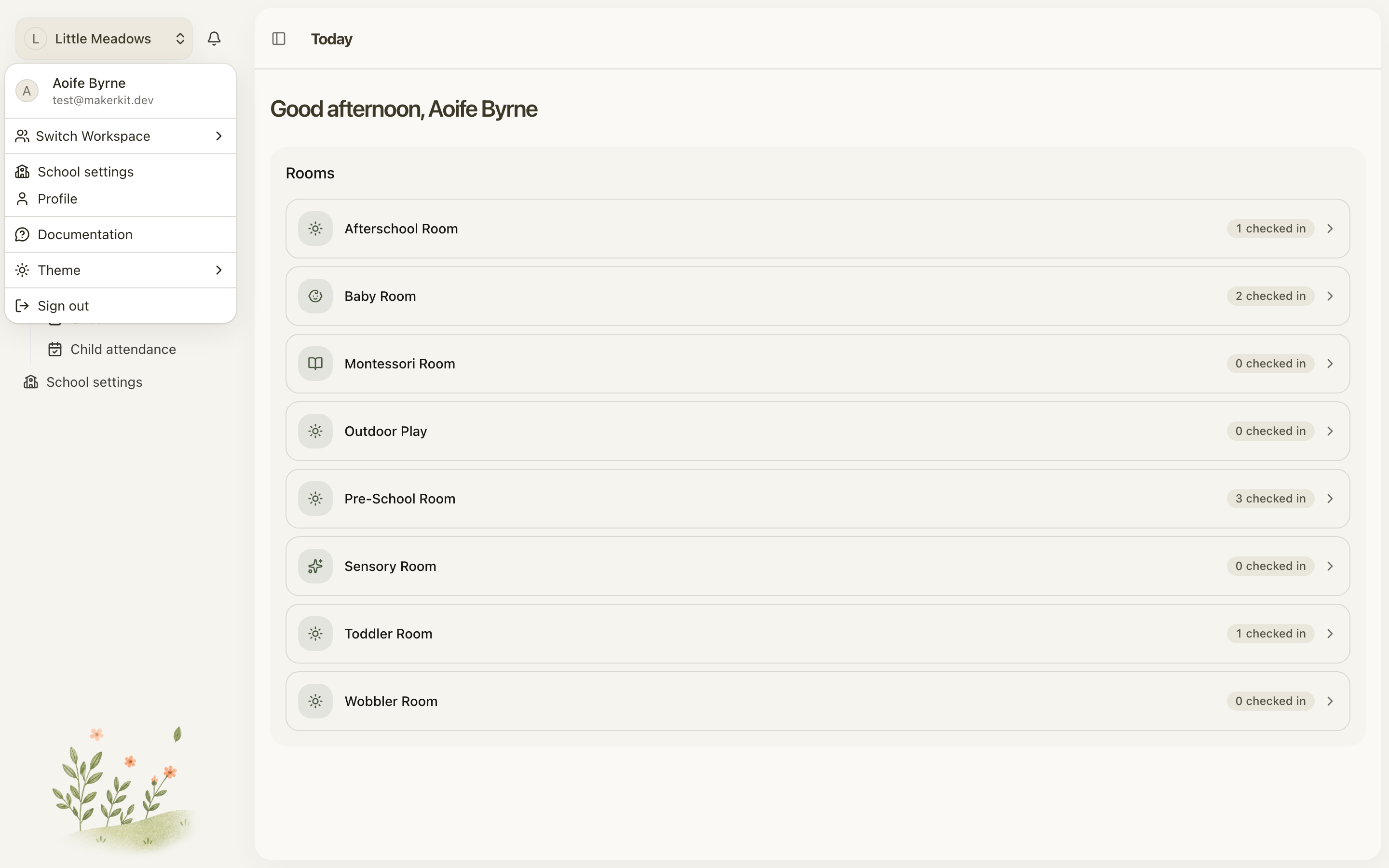
- Click the account menu at the top of the sidebar (the Switch Workspace control).
- If you have several schools, type in Search Account... to find one.
- Pick a school under Your Schools, or choose Personal Account if it's shown.
Meadow remembers the school you used last and opens it for you next time, so you don't have to choose every time you sign in.
What to do next
Now that your school exists, you can set it up as the owner. The natural next steps are to set up your rooms and adjust your settings such as your name, logo, opening hours and session types.
Common questions
Why can't I use my service's full name with an apostrophe, ampersand or comma? The School Name can't contain special characters, so a name like "St. Mary's & Co." won't be accepted — you'll see This name cannot contain special characters. Please choose a different one. Enter a plain version instead, such as "St Marys Childcare".
What's the minimum and maximum length for a school name? Between 2 and 50 characters.
I got "This name is reserved. Please choose a different one." The words settings and billing are reserved because Meadow uses them in its web addresses. Pick a different school name (or a different URL, if you were asked for one).
Why am I being asked for a School URL? The School URL field only appears when your school name uses non-English characters, like Cyrillic, Arabic or CJK scripts. Meadow can't auto-generate a web address from those, so it asks you to provide one using only letters (a–z), numbers (0–9) and hyphens, for example my-school-name.
I got "This URL is already taken. Please choose a different one." School URLs have to be unique across all of Meadow. Normally the URL is generated automatically and a number is added if there's a clash. If you set the URL yourself (because your name uses non-English characters) and it's already in use, choose another using only a–z, 0–9 and hyphens.
After signing up I only see a Welcome page — where are Today and my rooms? You haven't created a school yet. Open the account menu at the top of the sidebar and choose Create a School, or follow the Create your first school prompt. Once your school exists, you'll land inside it.
How do I switch between two schools, or between a school and my personal account? Use the account menu at the top of the sidebar. Search by name, then pick a school under Your Schools. Meadow remembers your last-used school for you. A Personal Account option won't appear if your organisation runs Meadow in schools-only mode.
Who becomes the owner of a new school? Whoever creates the school is automatically its owner, with full access. Ownership can be transferred to another member later.
Troubleshooting
The Create a School button is greyed out. School creation can be blocked by your plan or your organisation's policy — for example, an active subscription may be required. Hover over the disabled button to see the reason, or contact your administrator.