
The Today dashboard
Your live daily home screen — who's in, room by room.
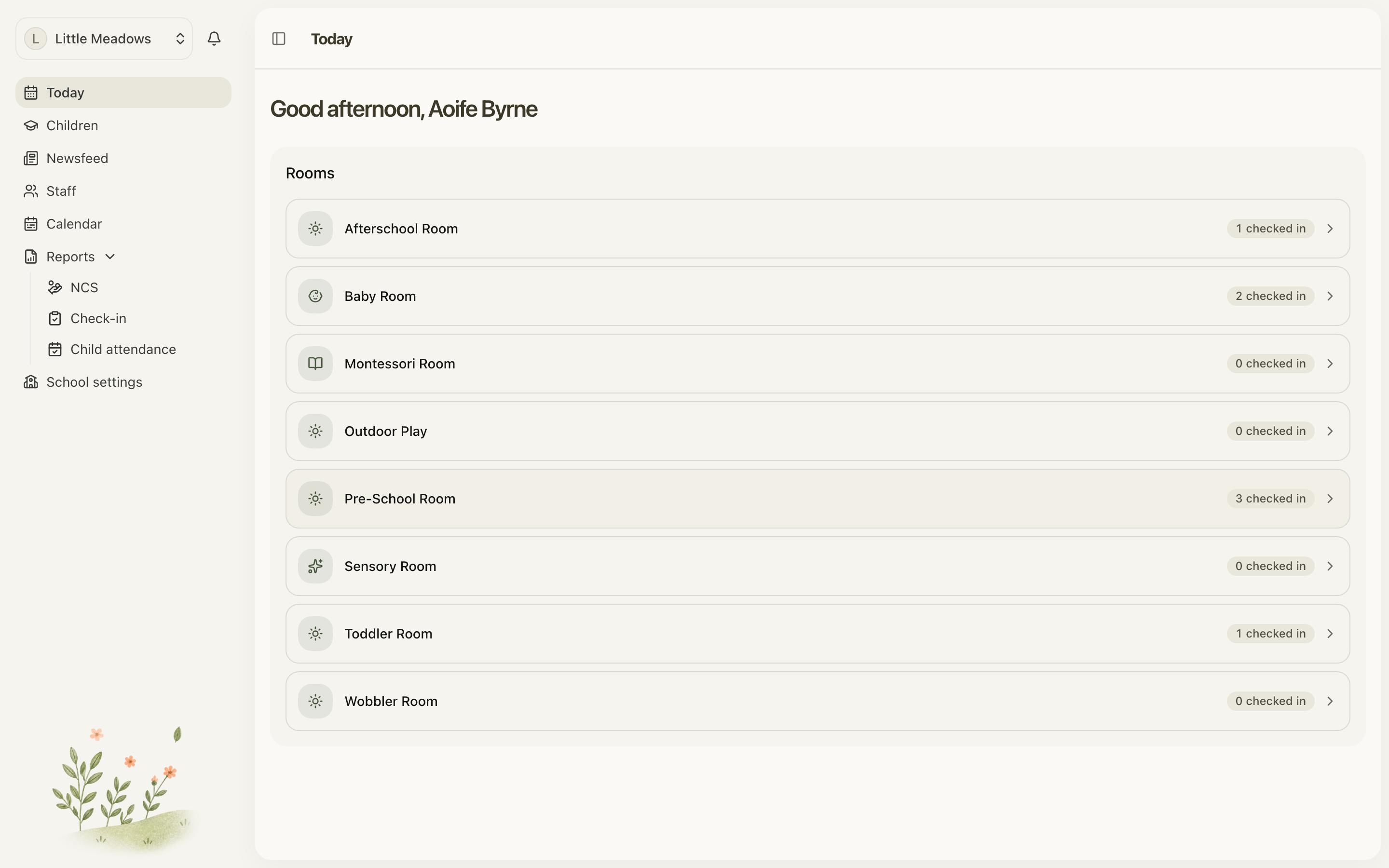
Today is the first thing your team sees after signing in. It's a calm, at-a-glance view of your service right now — every room, and how many children are checked in to each. From here you step into a room to take attendance.
You'll find Today at the top of the menu on the left (the calendar icon). It's also where staff land automatically when they sign in.
Your greeting
At the top of the page you'll see a friendly greeting addressed to you by name — Good morning, Good afternoon or Good evening, depending on the time of day. It's just a warm welcome; it doesn't change anything about your records.
The Rooms card
Below the greeting is a single card headed Rooms. It lists every active room in your school, in alphabetical order. Each room shows a live {count} checked in badge.
That number is the count of children currently checked in to that room — it goes up when a child is checked in and down when they're checked out or moved to another room. It reflects who is present right now, not the total number of visits across the day.
Note: Today is read-only. There are no quick actions on this screen — no check-in button, no add-child, no add-room. It's purely an overview. To do anything, open a room.
Opening a room
The whole point of Today is to get you into a room quickly.
- Find the room you want in the Rooms card.
- Click anywhere on the room's row — the entire row is a link.
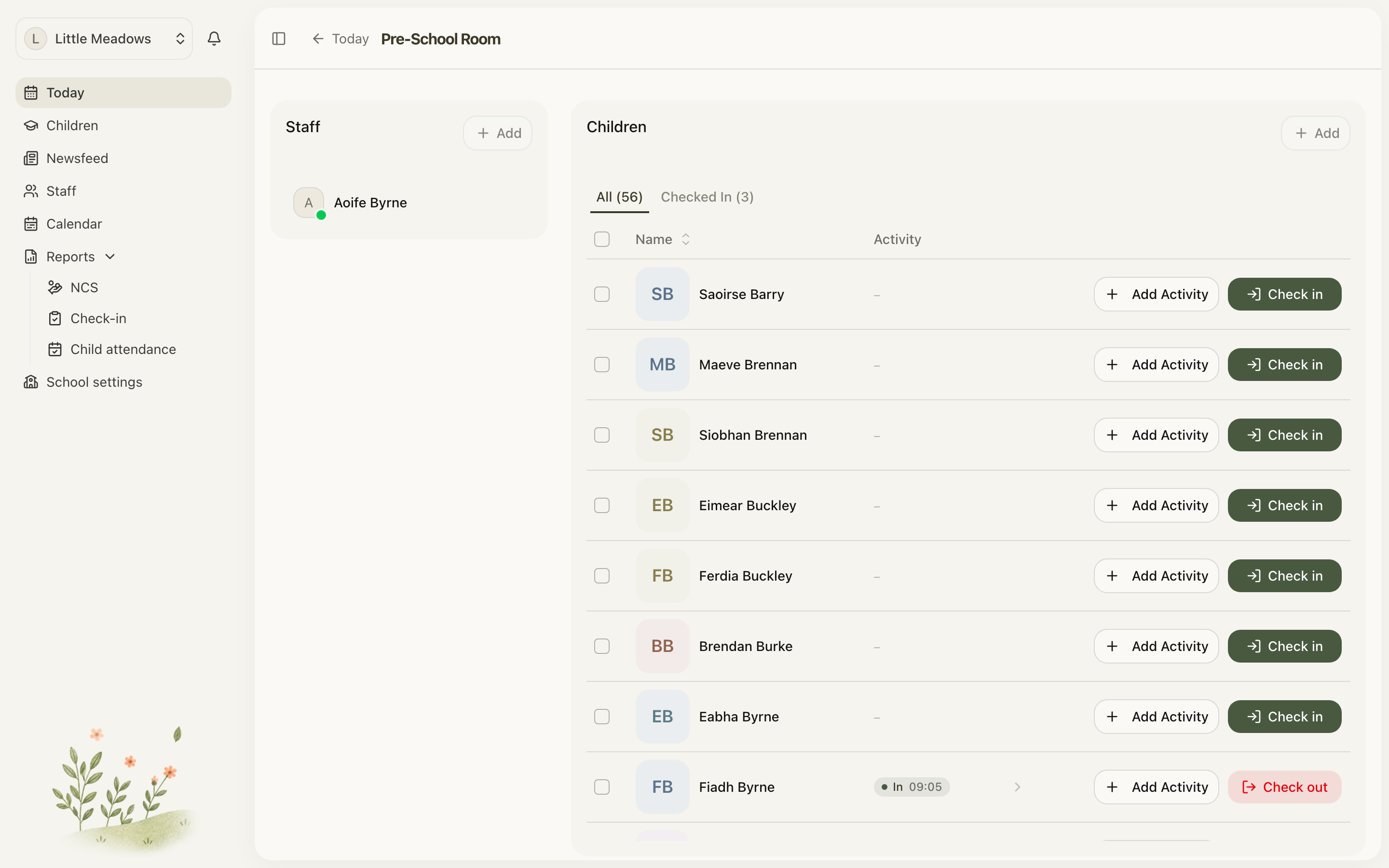
- You land on that room's page, which shows the children's roster and is where you check children in and out.
- To come back, use the Today back link (the arrow at the top-left).
Before you have any rooms
If you haven't set up any rooms yet, the Rooms card shows a door icon with the message No rooms set up yet and the prompt Create rooms to start tracking attendance.
There's no add-room button here — rooms are created in School settings. Once you set up your rooms, they appear on Today automatically.
Who sees Today
Today is for staff only. Owners, Managers, Senior Practitioners and Practitioners all see it exactly the same way.
Parents and Family members never see Today. When they sign in, they go straight to their children's list instead, and the Today item doesn't appear in their menu at all.
Common questions
What does the "checked in" number on each room mean? It's the live count of children currently checked in to that room. It updates as children are checked in, checked out, or moved between rooms — so it always shows who's present now, not the total number of children who've passed through today.
Why don't I see the Today page? Today is staff-only. If you're signed in as a Parent or Family member, you're taken to your children's list instead and the Today menu item isn't shown. All four staff roles see Today.
Why is one of my rooms missing? Today only lists active rooms. If a room has been archived, it quietly drops off this screen. Re-activate or recreate it in School settings and it'll reappear. Remember the list is ordered alphabetically by room name.
There's no button to add a room here — how do I add one? Rooms aren't created from Today. While you have none, you'll see No rooms set up yet with the prompt Create rooms to start tracking attendance. Add your rooms in School settings and they'll show up here. See set up your rooms.
I clicked a room and ended up on a different page. That's expected. Each room row is a shortcut into that room's page, where the roster and check-in/out actions live. Use the Today back link at the top-left to return to the dashboard.
Troubleshooting
The greeting shows my email instead of my name. The greeting uses the name on your personal account. If you haven't set one, it falls back to the part of your email address before the @ sign. Add your name in your account settings to see a proper greeting.
The greeting says the wrong time of day. The greeting (morning before noon, afternoon until 6pm, evening after) is just decoration based on the clock when the page loads. It has no effect on attendance or any of your records.